|
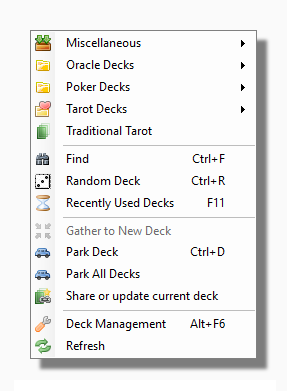
The top section of the My Decks menu is different for every user because it shows the decks which are installed in your own unique Decks Folder. Your Decks Folder can also contain subfolders which can contain decks or more subfolders and so on. How does the program know which are decks and which are just normal folders? It looks for the presence of a card named 0 or 00 with a suitable image file extension. You can find out more about this in the section on Creating New Decks.
The folders which contain your decks sometimes have different icons if they have been flagged in certain ways.

| Load on Demand When you have a very large number of decks in any given subfolder it can take the program a long time to build up the My Decks menu. If these decks are ones you keep for reference or collections purposes but don't frequently use you can help keep the program snappy by marking the folder as "Load on Demand". When a folder is marked in this way it only has one associated menu item, labelled simply "Load on Demand". Clicking on this item loads all the decks into the My Decks menu so you can then access them in the normal way. You can mark a folder as Load on Demand in the Deck Management tool. |

| A Dynamic Collection is a special kind of Sequential Collection that is associated with a particular folder. Any deck that is added to that folder automatically becomes part of the collection. To load a Dynamic Collection you Shift Click (hold down the shift key while clicking) on this icon. You can mark a folder as a Dynamic Collection in the Deck Management tool.. You can find out more about how to create and edit different kinds of collections in the section on My Collections. |
Below the folders come any decks that are loose in your top level Decks Folder. Just click on a deck to switch to using that deck.
Tip: You can also launch any deck as a Secondary Deck by shift-clicking on its icon.
Find Launches the Find Decks Tool.
Random Deck This loads a deck chosen at random from your My Decks Menu and its sub-menus.
Recently Used Deck Launches the Recently Used Decks Tool.
Gather to New Deck This performs the same function as the Gather to New Deck item on the Gather Cards Menu.
Park Deck This Parks the deck at the bottom of the screen.
Park All Decks This Parks all the currently open Deck Forms.
Share or Update Current Deck launches the Deck Exchange Share or Update Deck Tool.
Deck Management launches the Deck Management Tool.
Refresh This rebuilds the My Decks menu. You may wish to use this if you have manually added to or reorganized your Decks Folder outside the program e.g. using Windows Explorer.
|